
How to Switch from Goodreads to BookOwl
Most people who stay on Goodreads stay for the history. Years of ratings, shelves, and reading dates feel too heavy to move, so the account outlives the affection. That history is the part I care about too, so BookOwl is built to carry all of it over. The whole move takes about ten minutes, and most of that is waiting for Goodreads to generate a file.
Step 1: Export Your Goodreads Data
Goodreads lets you download your entire library as a CSV file. You need the website for this, not the mobile app.
- Sign in at goodreads.com on a computer (or in a desktop browser view on your phone).
- Go to Goodreads' Import and Export page. You can also find it from My Books, under Tools in the left sidebar.
- Click Export Library.
- Goodreads generates the file and shows a download link on that page when it is ready. Small libraries take seconds. Very large ones can take a few minutes, and Goodreads will also email you the link.
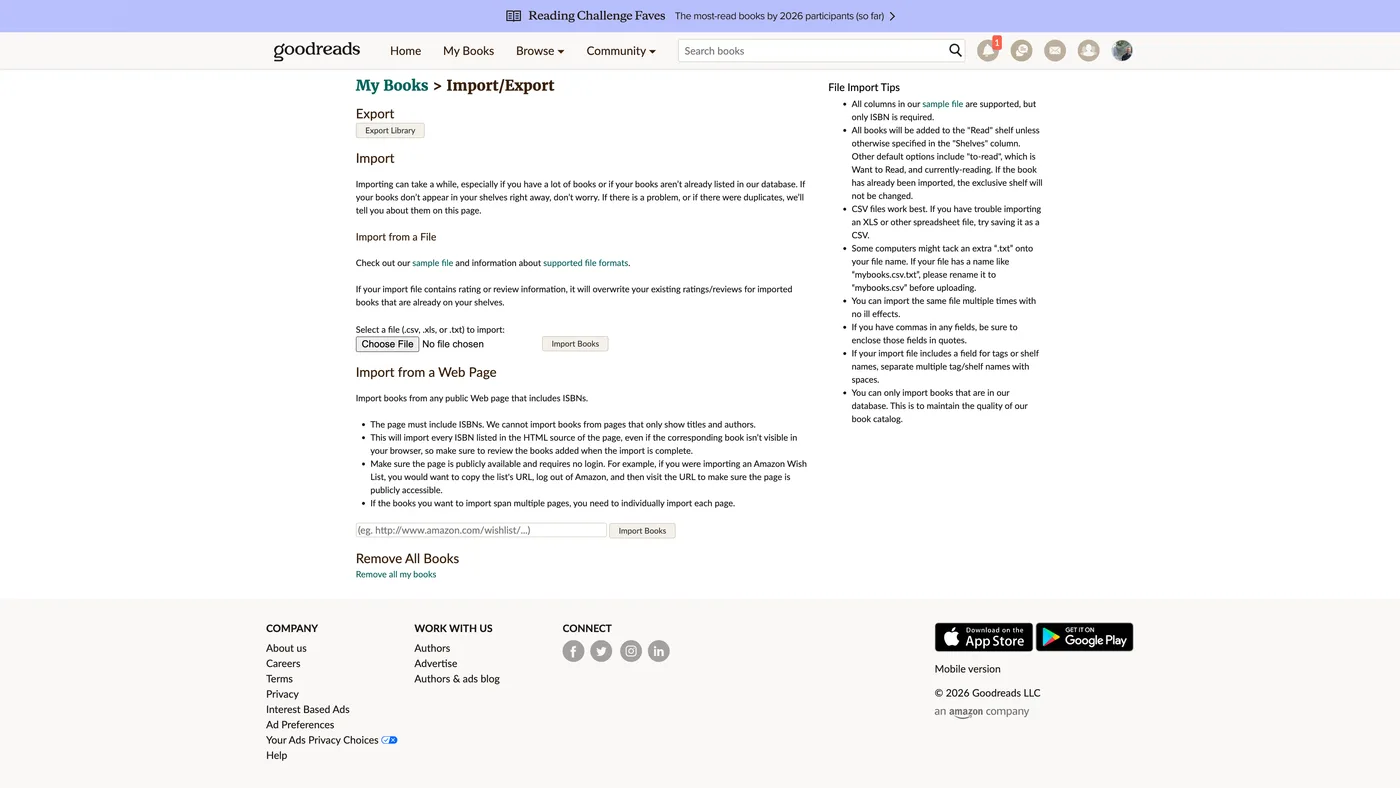
The file is named something like goodreads_library_export.csv. Save it somewhere you can reach from your phone, like iCloud Drive or the Files app. That one file contains your books, ratings, shelves, reviews, private notes, reading dates, and read counts.
Step 2: Import into BookOwl
You can import on your iPhone or on the web at bookowlapp.com, whichever is closer to where the file landed.
On iOS, open BookOwl, go to your Library, and choose Import, then Goodreads. Pick the CSV file. BookOwl matches each book by ISBN first and falls back to a title and author lookup when the ISBN is missing, which happens more often than you would expect in older Goodreads data. A progress view shows books landing as they match.
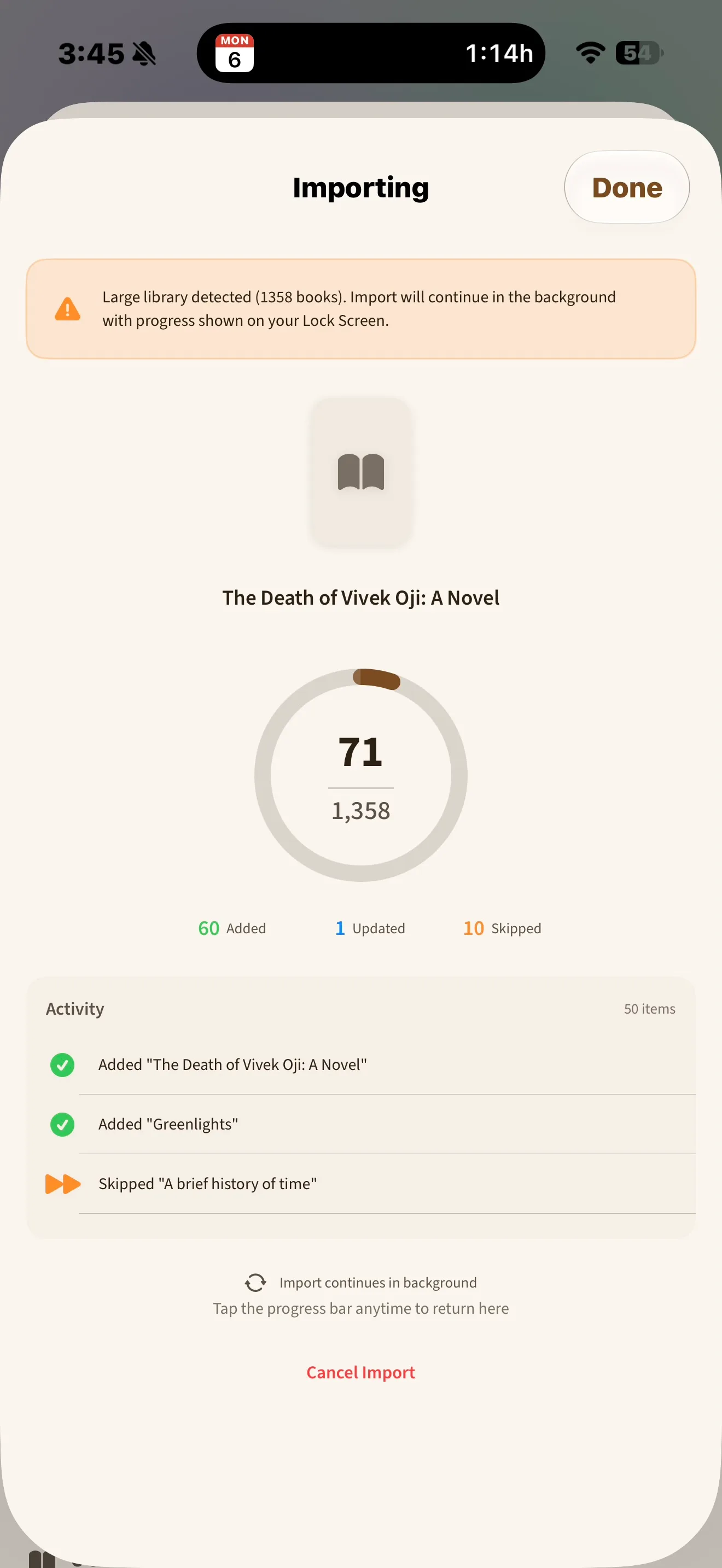
Big libraries are fine. The importer works through hundreds of books in a few minutes, and it keeps working in the background, so you can leave the app and come back to a finished library. If a book source rate-limits us mid-import, it backs off and keeps going rather than dropping books.
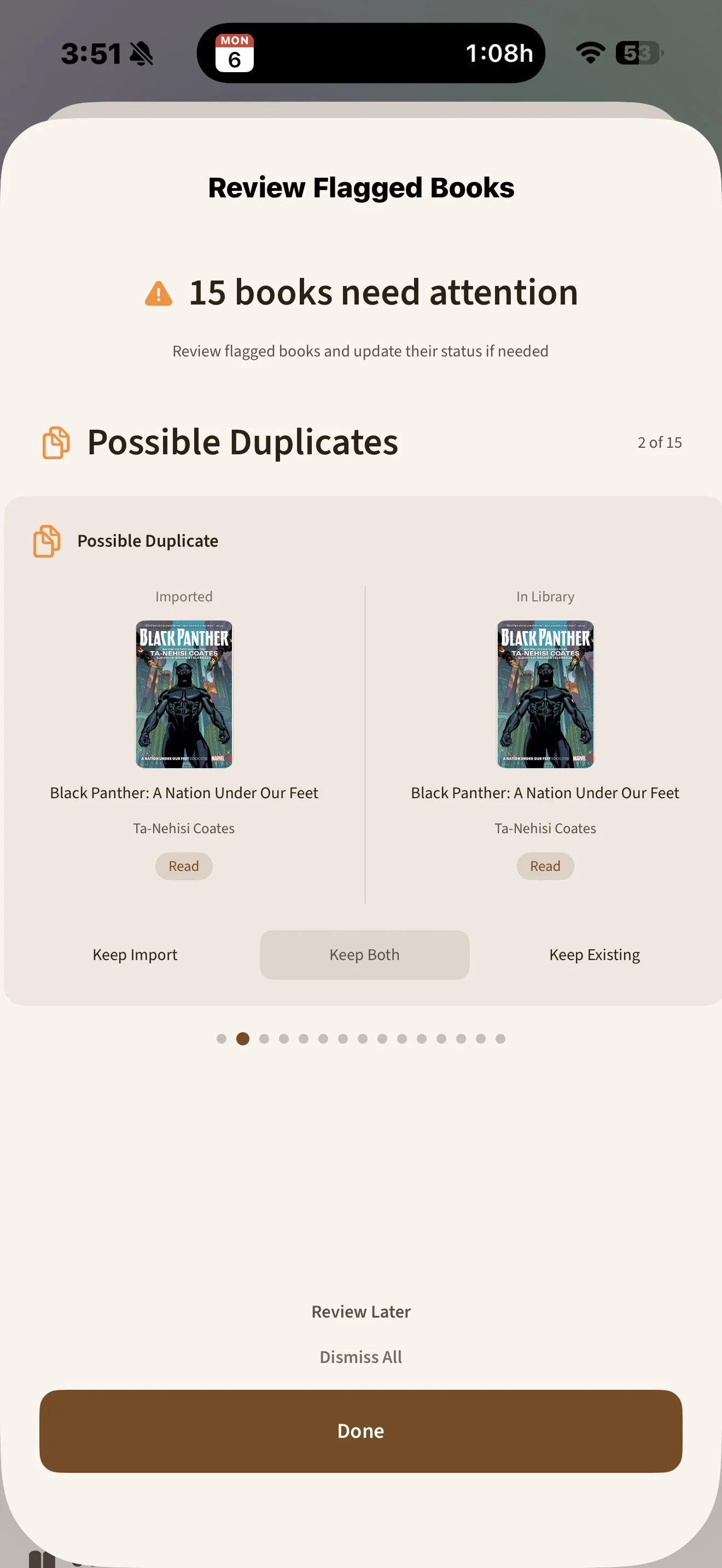
When the import finishes, BookOwl shows you a duplicate review screen if anything you imported looks like a book you already had. You decide what merges. Nothing is merged silently.
Step 3: Organize Your Library
Your Goodreads shelves arrive in two forms, matching how Goodreads actually treats them:
- The exclusive shelves (Read, Currently Reading, Want to Read) become BookOwl reading statuses.
- Every custom shelf ("beach reads", "cozy mysteries", "abandoned but not forgotten") becomes a BookOwl custom shelf with the same books on it.
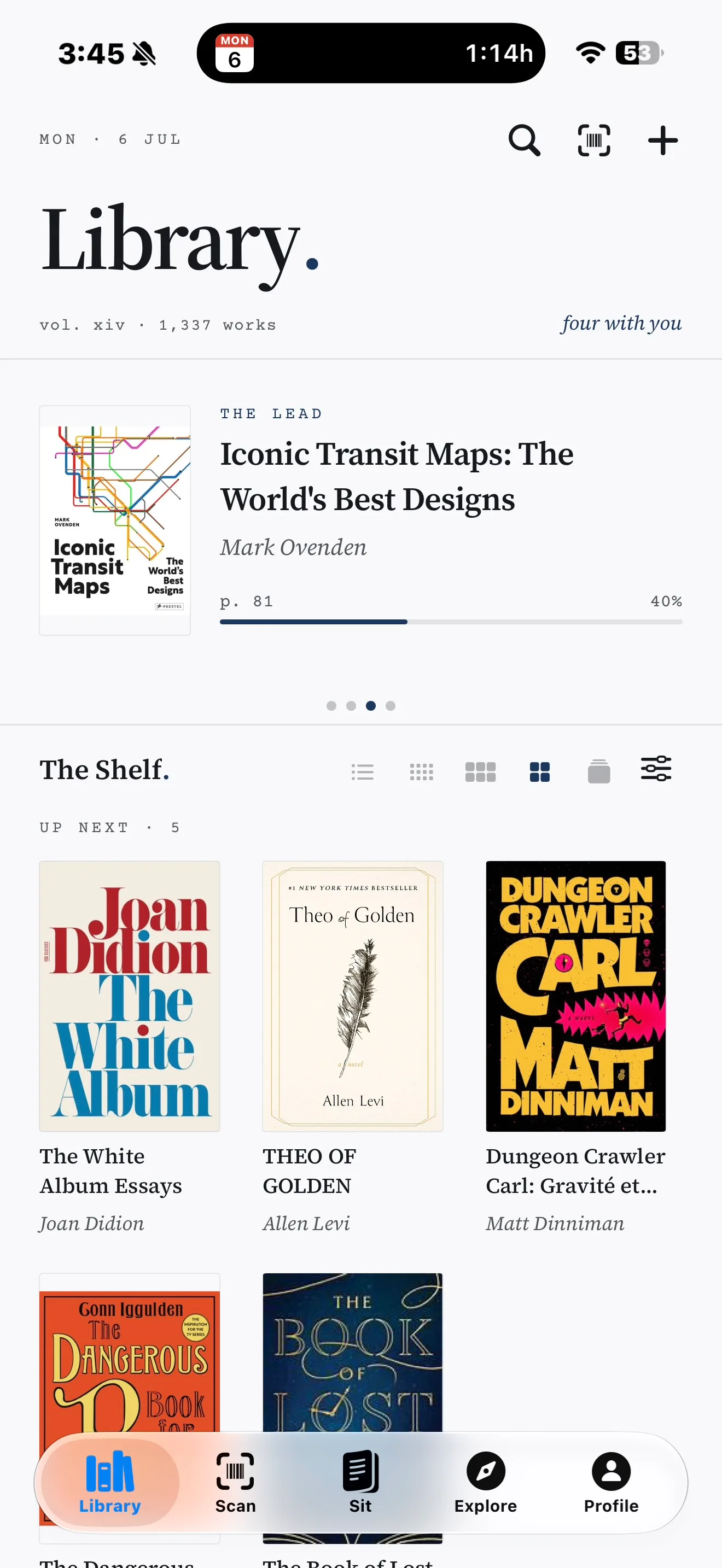
From there, a few things are worth five minutes of setup. Pick a theme, since the default is only one of twelve. Set a reading goal if you had one on Goodreads, because goals do not live in the export file. And if you rate in half stars in your head but Goodreads forced you to round, you can now fix the ratings that have quietly bothered you for years. BookOwl supports half and quarter stars.
What Transfers (and What Doesn't)
I want this list to be exact, because a migration guide that oversells is worse than no guide.
Transfers:
- Books, matched by ISBN with title and author fallback
- Your ratings, exactly as you gave them
- Reading status (Read, Currently Reading, Want to Read)
- Dates read and dates added
- Read counts, so re-reads are preserved
- Custom shelves, with their books
- Your written reviews
- Private notes, which stay private in BookOwl. They are stored so that only your account can read them.
Does not transfer:
- The Owned tag. Goodreads exports it and BookOwl reads it, but there is no owned flag on BookOwl books yet, so it has nowhere to land. This is on the roadmap, and I will update this guide when it ships.
- Your Goodreads friends and followers. No export from Goodreads includes your social graph.
- Likes and comments on your reviews. Those live in Goodreads and stay there.
- Cover images. BookOwl fetches its own covers, and you can switch editions if you ended up with the movie cover you never wanted.
One limit worth knowing before you start: BookOwl is on iPhone and the web today. If you need an Android app, we are not your answer yet.
You Can Always Leave
The same door works in both directions. Settings, then Data, then Export Library gives you a CSV or JSON file of everything, anytime, free. I wrote more about why that matters in Your Library Is Yours.
Ready to try it? BookOwl is free on the App Store, and the switch guide has the short version of everything above.